Learn how to use Pin GPTs
Getting Started
Pin Chats
- Go to ChatGPT, Claude, Gemini, DeepSeek or Grok.
- Open the chat you want to pin.
- Click the pin button () in the new Pinned section of the sidebar to pin the chat.
- If you want to unpin it, just click the () icon while the chat is open or hover over the chat and click the () icon.
The chat you want to pin must be open.
Create Folders
- Click the () icon in the sidebar to create a folder.
- You can now add new chats directly to this folder by clicking the () icon when hovering over this folder.
- You can also add already pinned chats to this folder by just dragging them into the folder.
You must pin a chat before you can drag it into a folder. You can not drag chats directly from the website without pinning them first.
Assign Tags
- Click the tag icon () next to any pinned chat or click the Manage Tags button in the sidebar.
- Create custom tags, choose their colors, and give them a name.
- Assign tags to your pinned chats to group related conversations together.
- Search or filter your chats by typing a tag's name in the sidebar search bar to find them instantly.
Backup & Sync
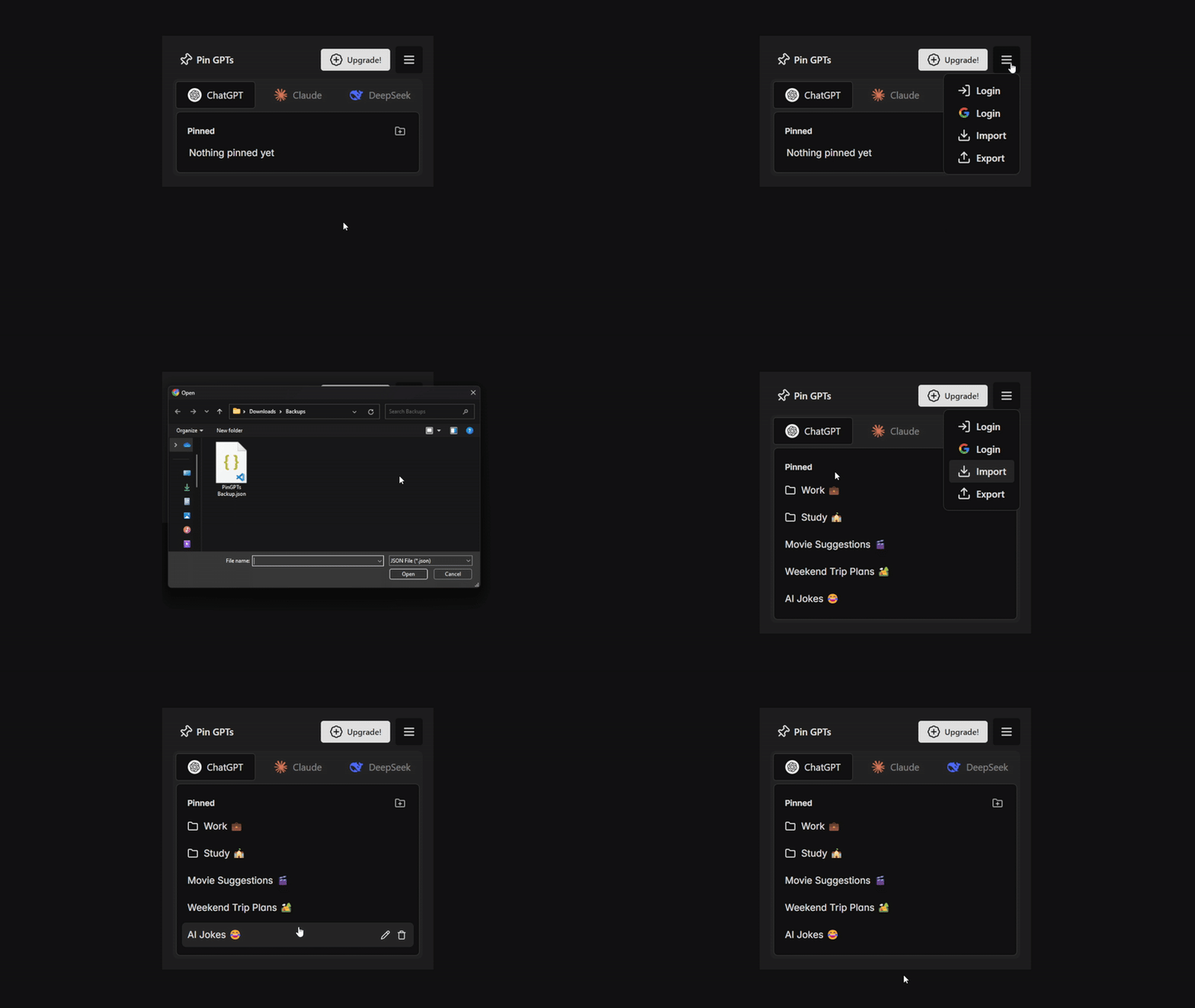
- From the extension sidepanel, click 'Backup Data' in the menu to open Backup page.
- On the Backup page, you can create and restore a local backup of your pinned chats and folders.
- If you are a Plus user, you can also enable Sync to keep your data synchronized across devices using Google Drive.
Your data is private and never sent to our servers.

Pinned Chats in Sidebar
The pinned chats are automatically added to the sidebar on supported websites. Click any pinned chat to navigate to it. You can also access the pinned
chats from extension sidepanel by clicking the extension icon in your browser toolbar.
Need Help?
If you have any questions, issues or feedback, please reach out directly to me via email at dev@pingpts.com or use the form here.
You can also ask for help, share your feedback and discuss new features in our community by joining our PinGPTs discord server.